Play your presets
Map preset selection and performance controls to compatible keyboard keys, MIDI notes, buttons, knobs or sliders.
 SATURN FX
Map preset selection and performance controls to compatible keyboard keys, MIDI notes, buttons, knobs or sliders.
Use Keyboard Input mode to play the oscillator relationships you choose. Set each band’s amplitude and use the two-octave on-screen keyboard.
One factory page and three user pages, Classic, Dark, Vintage, Neon and Graphene compositor themes, plus external-display controls on supported setups.
Controller compatibility and external-display behavior depend on the host device and hardware. Validate your complete setup before a live performance.


SPARKFX
Create sound and moving colour with three oscillator bands and noise. Start with a low volume. Press PLAY to perform and STOP to stop.
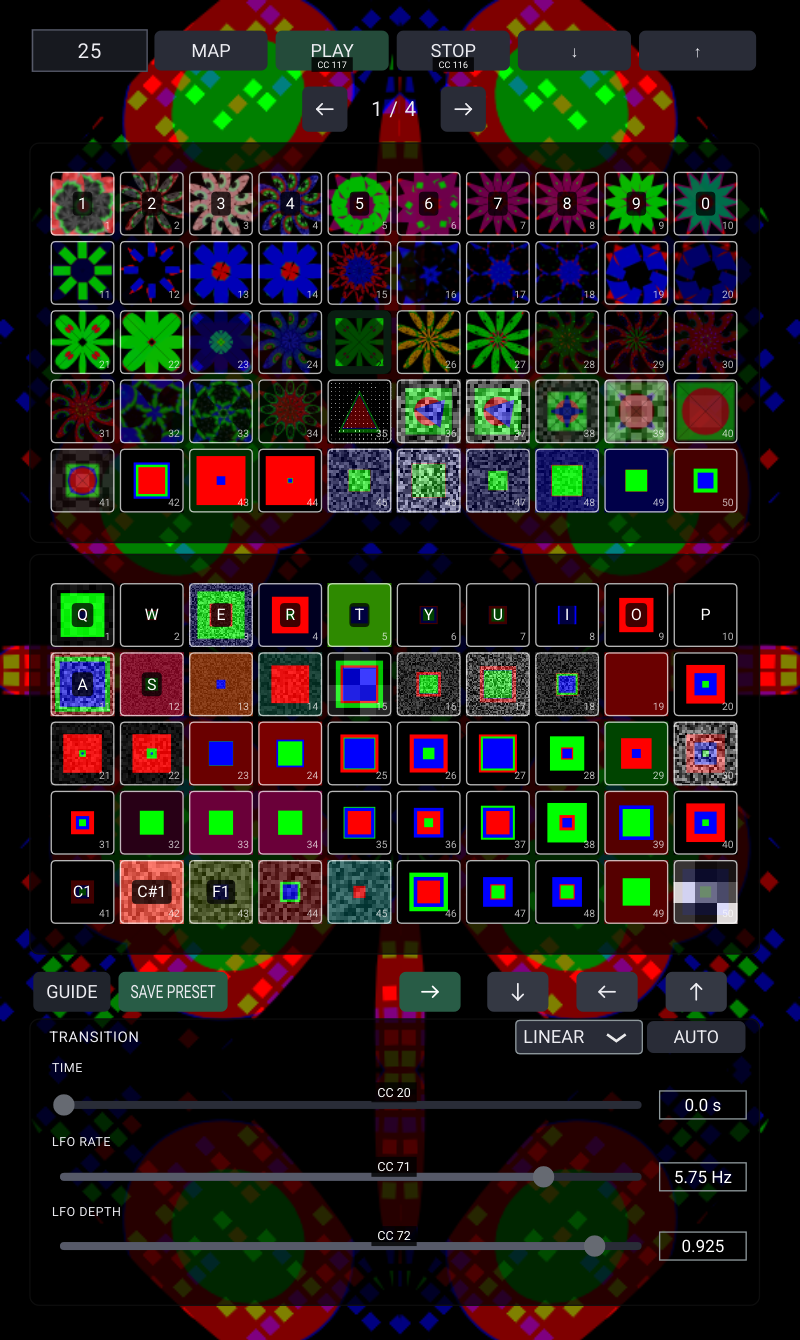
Display is above Selector; Compositor is below it. In Selector, swipe up for Display, down for Compositor, or left/right for the four preset pages. On the Compositor preview, swipe up, left or right to return to Selector. On Display, swipe down for Selector or sideways for Compositor. Use the arrows for the same actions.
Drag up or down over this text to scroll. Guide gestures do not change pages or presets. Close the guide to return to the app.
Connect a USB MIDI controller or keyboard. Tap MAP, choose a highlighted preset, slider or button, then press a key/note or move a MIDI control. Move a CC knob or fader to map a slider. MAP again or Escape cancels. Select a target and press Delete to clear its mapping.
Mappings are master settings and are saved immediately. They work across presets and after restarting or reconnecting. Rate and Depth in Selector and Compositor share the same mappings: the last assignment replaces the previous one everywhere. Old per-preset LFO assignments are migrated into this shared mapping in stored order. MIDI assignments use channel and note/CC number; controllers on the same channel with the same control number share that assignment. Use different MIDI channels to distinguish them.
Play, Stop, Save, traversal arrows, Linear/Interval and Auto can be mapped. CC buttons act when pressed, not when released. Mapping a control to a new target moves that assignment. Reconnect your controller before performing; the app checks for MIDI devices automatically. Hardware needs USB host/OTG support and adequate power.
The small piano icon beside MAP enables keyboard control of oscillator pitch. When off, incoming notes can still light the on-screen keys without changing the sound. When enabled, MID initially sits one octave above LOW and HIGH three octaves above. Adjust the sliders to choose harmonies; notes transpose that tuning and Detune remains active. Swipe the on-screen keyboard sideways to choose its two-octave range.
OPACITY selects only opacity and clears Scale/Rotation for that band; it never opens a settings window. SCALE selects only scale. Tap SCALE a second time while it is selected to open the shape settings and combine all three properties. Choose Square (the original rectangular frame), Circle or Triangle. Select any combination of Opacity, Scale and Rotation, then Close. Opacity fades the shape, Scale changes its size (up to 15% beyond the previous range), and Rotation turns it with twice the previous travel, using that band's filter modulation. Each band has its own settings.
Tap CONFIG in Noise. Color at 0% is the original black-and-white noise; 100% gives separated red, green or blue pixels, with no mixed-colour pixels in the noise layer. Spacing expands the grid outward from its centre and adds black gaps between noise blocks, from none to about 5 mm depending on screen density. Normal keeps the original contrast; High boosts it; Ultra makes each channel on or off. The + / - and multiplier controls route Color and Spacing to the LFO. Their sliders can also be MIDI-mapped.
The Volume section contains Kaleido 1, 2, 3 and 4. Toggle any combination; selected effects are applied in order. Kaleido 1 creates an expanding flower, Kaleido 2 folds the image into mirrored sectors, Kaleido 3 creates a rotating star and Kaleido 4 makes a flowing spiral rosette. Modes 1, 3 and 4 balance visible geometry with a small amount of edge overscan and animate their geometry while playing. LFO Rate controls motion speed (limited to 0.03-0.5 cycles per second for smooth movement); Depth increases pulsing and deformation. Some movement remains at zero Depth. STOP freezes this motion. Previous Moire selections now select Kaleido 3 or 4. They affect the combined RGB and Noise display, not the audio. Turn all four off for the original output.
Tap a tile to recall it. SAVE captures the composition; choose a destination on a User page. Visual settings are saved with the preset. Controller mappings are global and are not replaced by preset recall. Output volume remains a device preference. TRANSITION controls the time between presets; tap its number for up to 60 seconds. Linear blends; Interval waits then changes. Auto follows the selected traversal arrow.
Open GUIDE from Selector to choose the style. The style menu changes the compositor interface only. It does not change the output. The band/noise settings and artistic filters do change the output. DISPLAY OUTPUT offers a separate display on supported multi-screen systems. Test your controller and display setup before a performance.
Guide: https://saturnfx.com/apps/sparkfx.html
Email: support@saturnfx.com